
How I Optimised My Sim Racing PC in Two Days (and What Actually Made the Difference)
The short version: in Assetto Corsa Competizione at Donington, starting a race in a pack of 25 AI cars at sunset, my PC went from 77fps to 125–130fps. No new parts. Two days of work, most of it checking things before changing them.
The biggest lesson surprised me. My sims weren't held back by the graphics card at all. They were held back by the processor, which meant most of the graphics settings I'd been fiddling with for years were the wrong ones to touch.
Here's what I changed, what made the most difference, and the things that went wrong along the way.
The Headline Numbers
| Sim and test | Before | After |
|---|---|---|
| ACC, Donington, 25 AI, sunset, race start | 77fps | 125–130fps |
| Assetto Corsa, Cadwell Park, Lotus, solo | Dips to 77fps over kerbs | 125–135fps, dips gone |
| Le Mans Ultimate, Spa, Hypercar, quiet practice | Not measured | About 140fps (an easy test) |
The Rig
Alongside track days and motorsport, sim racing is one of my passions. It's also how I prepare. Before a track day I use the rig to practise the circuit before I drive it for real. I also drive international circuits I hope to take on at a track day one day, like Spa-Francorchamps.
The PC behind it is nothing exotic. It's a decent mid-range build that's a few years old now:
- PC: Ryzen 7 5800X, RTX 3080 10GB, ASUS PRIME B550-PLUS motherboard, 32GB RAM (four 8GB sticks from mixed Corsair kits), 500GB NVMe SSD plus a 2TB hard drive, Windows 11
- Screen: Gigabyte G34WQC ultrawide, 3440×1440 at 144Hz
- Wheels: Fanatec CSL Elite wheelbase, with a Fanatec F1 wheel, a Fanatec McLaren GT3 wheel, and a custom 3D-printed Ferrari GT3 wheel on a Fanatec Universal CSL hub
- Rig: Next Level Racing sim rig, BB5 suede fibreglass seat, Heusinkveld Sprint pedals, custom bass shakers on the seat and pedals, and a Stream Deck
- Network: Wi-Fi rather than Ethernet, by choice
- Sims: ACC, Assetto Corsa (with Content Manager and Custom Shaders Patch), Le Mans Ultimate, rFactor 2, Automobilista 2, F1, iRacing
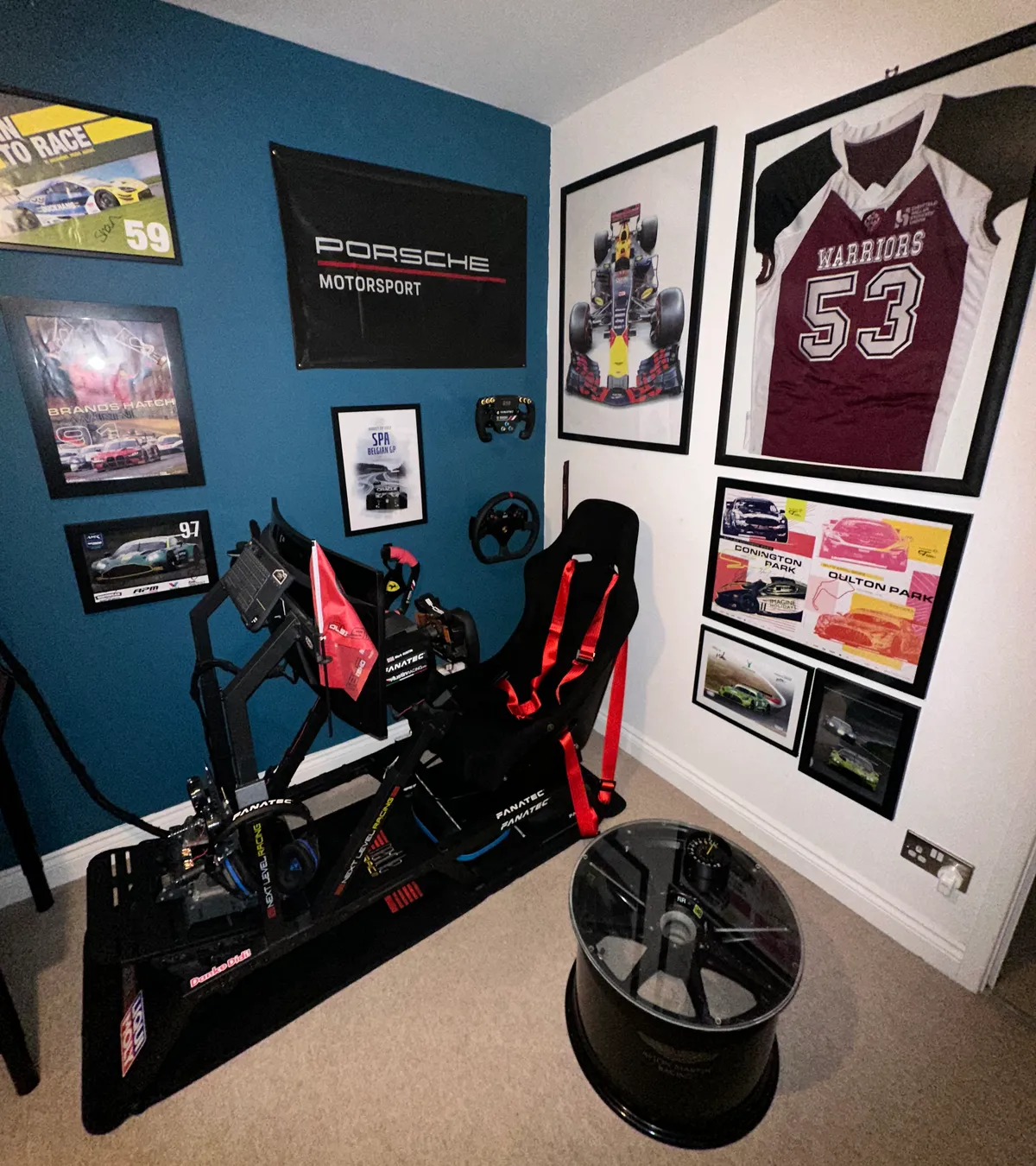
The rig, with two of the wheels on the wall.
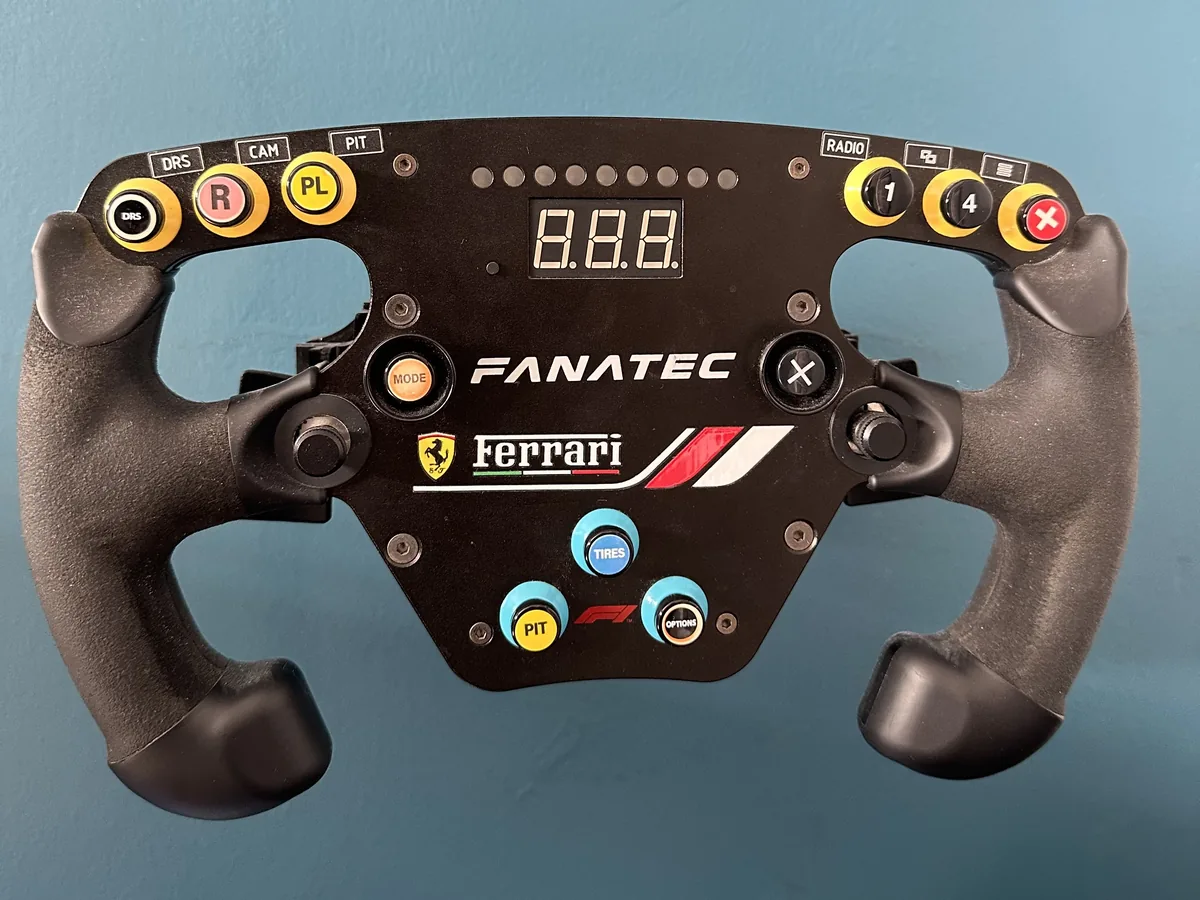
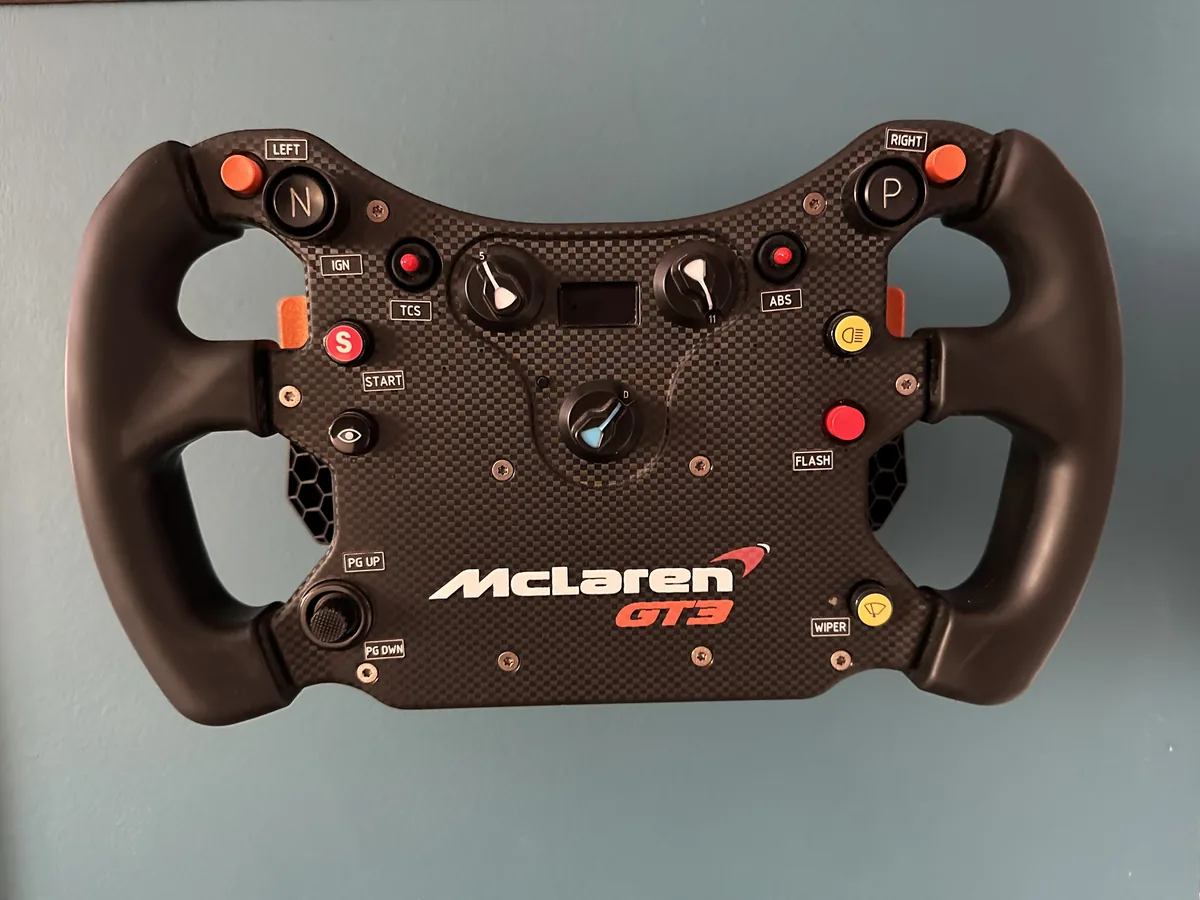
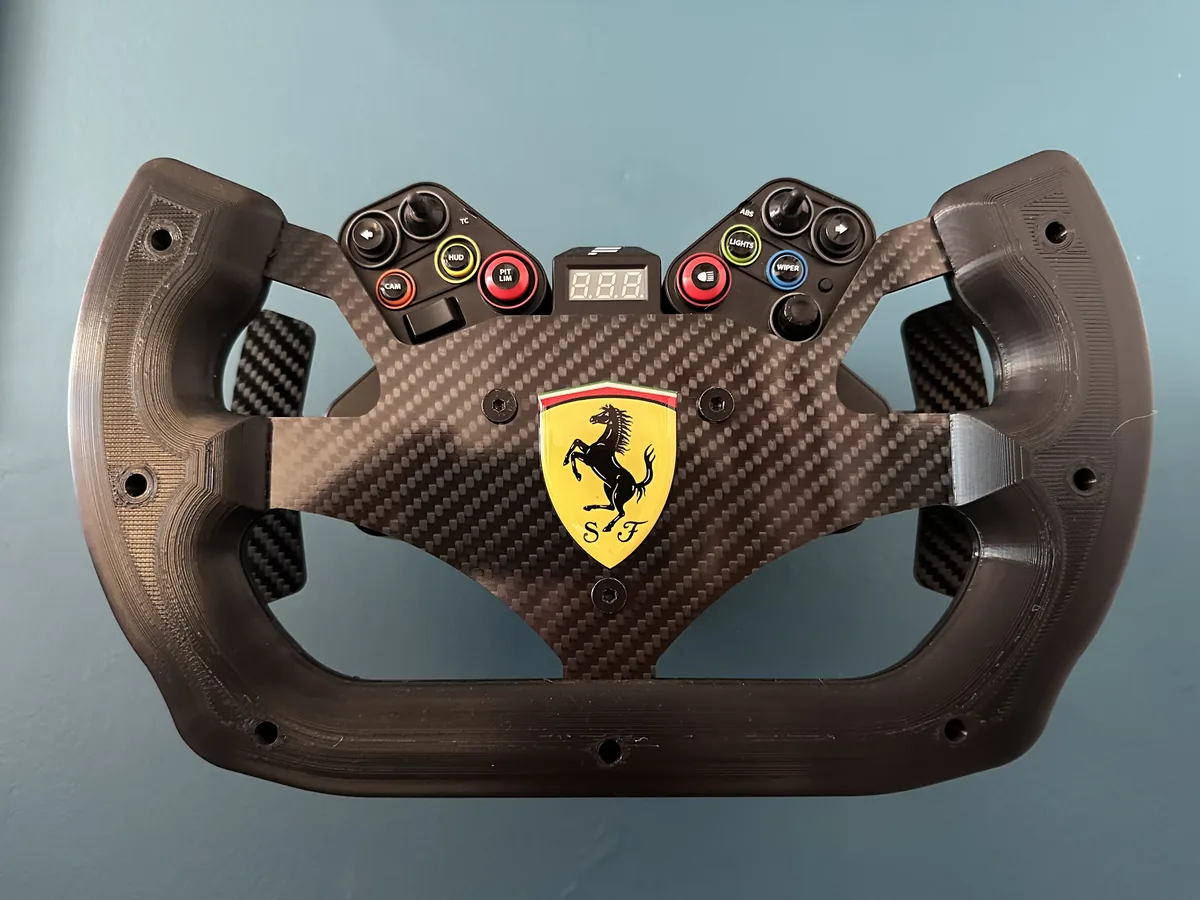
The three wheels: the Fanatec F1, the Fanatec McLaren GT3 and the custom 3D-printed Ferrari GT3.
How I Went About It
I did this with an AI coding assistant, Claude Code, running PowerShell on the PC. It did the digging and proposed the changes; I approved every one before it ran. That's a useful way to work through a long list of checks, but the method matters more than the tool, and it was the same method I'd use on a client's website:
- A read-only audit first. Nothing was changed until I'd read through what it found.
- Backups before any change. A Windows restore point and registry backups, and every change logged so it could be undone.
- Built-in Windows tools and official vendor software only. No "PC optimiser" or "debloat" apps. Defender, Windows Update and the security features all stayed on.
- A verification pass afterwards to check that everything had actually taken effect.
The Big Finds in Windows and the BIOS
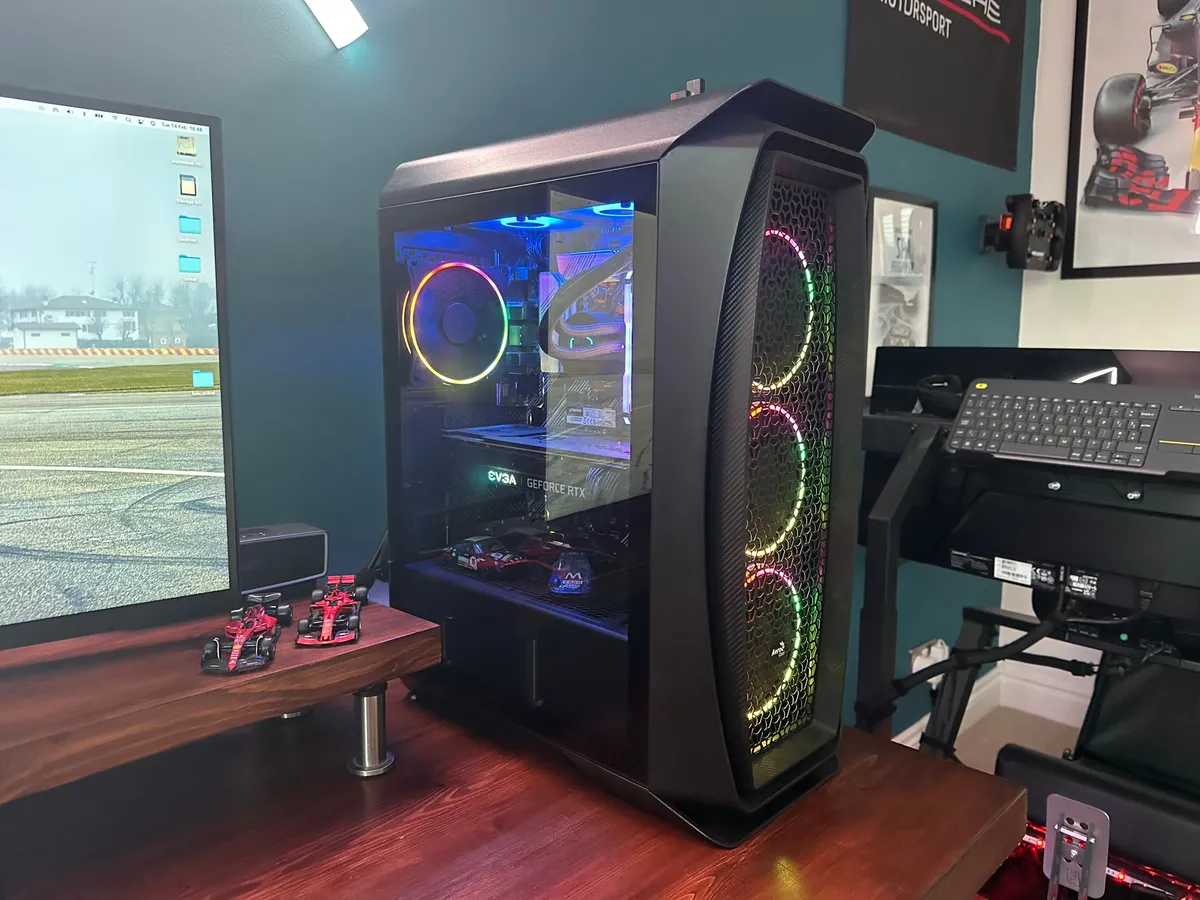
The PC: a Ryzen 7 5800X and an RTX 3080, unchanged throughout.
My RAM Was Running a Third Slower Than It Should
The memory was running at 2133MHz instead of its rated 3200MHz. Memory only runs at its advertised speed if you switch on its XMP profile (AMD boards call it DOCP) in the BIOS, and I never had. I enabled it and ran a memory test, which passed. With four sticks from different kits, I wanted that test done before trusting it.
Everything Was Out of Date
The BIOS was out of date, so I updated it (3405 to 3645). I also updated the AMD chipset driver, did a clean NVIDIA driver install, moved to Windows 26H2, and updated the Fanatec and Heusinkveld software and firmware.
Years of Bloat
I removed games I don't play (Call of Duty, Madden, Dying Light) and a pile of background utilities: ASUS Armoury Crate and AI Suite, NZXT CAM, EVGA Precision X1, some Intel helper tools and RealVNC. Armoury Crate came off with ASUS's own uninstall tool, and I turned off the BIOS option that quietly reinstalls it.
| At idle | Before | After |
|---|---|---|
| RAM in use | 7.8GB | 5.8GB |
| Committed memory | 12.8GB | 7.3GB |
| Running processes | 269 | 214 |
| Running services | 130 | 109 |
| Free space on the NVMe | 23GB | About 114GB |
To free up the SSD I moved sims between drives using Steam's own "Move install folder" option rather than copying files by hand.
Power, USB and Wi-Fi
I set up a custom power plan and switched off USB power saving on the wheelbase and pedals, so Windows can't put them to sleep mid-race and cause a dropout. On the Wi-Fi adapter I turned off power saving, set it to prefer 5GHz and set roaming to its lowest setting so it stops hunting for other access points. A two-minute ping test afterwards gave a 15ms median with 0% packet loss.
The Standard G-Sync Setup
G-Sync matches the monitor's refresh to the frame rate, so you get smooth motion without tearing. It works best set up like this:
- G-Sync on in the NVIDIA Control Panel
- NVIDIA Low Latency Mode set to On
- A frame rate cap of 141fps, just under the screen's 144Hz, so G-Sync never runs out of range
- V-Sync on in the NVIDIA Control Panel
- V-Sync off in every sim
The Surprise: My Sims Were Limited by the CPU
Back to ACC: Donington, 25 AI cars, sunset, race start, 77fps. The obvious move is to turn the graphics down. I did, and it changed nothing.
So I measured how busy the graphics card was. It sat at only about 71%. If the GPU isn't flat out but the frame rate is still low, something else is holding it up. Here, that was the CPU's main thread, the part of the processor that works out the AI, the physics and gets each frame ready before the GPU can draw it. With a big AI grid, that's a very common bottleneck in sims.
That changes which settings are worth touching. Some settings cost mostly CPU time, because they add more things for the game to prepare each frame. So I lowered those:
- Mirror quality and mirror distance
- View distance
- Shadow distance
- Foliage LOD (how far away trees and grass stay detailed)
And because the GPU had capacity to spare, I put effects and fog back up to Epic.
| ACC, same test each time | Frame rate |
|---|---|
| Starting point | 77fps |
| After the CPU-saving settings | About 100+ (dips to 85) |
| After Resizable BAR and Curve Optimizer | 125–130fps |
The BIOS Changes That Beat My Expectations
Two BIOS settings did more than I thought they would.
Resizable BAR lets the CPU access all of the graphics card's memory at once instead of in small chunks. On this board it means turning on Above 4G Decoding and then Re-Size BAR Support. My card's vBIOS already supported it, so no graphics card firmware flash was needed.
PBO Curve Optimizer at −10 on all cores is a mild undervolt. The CPU runs at slightly lower voltage, so it runs cooler and holds its boost clocks for longer.
Together they took ACC from about 100fps to 125–130fps. I'd expected 3–6%. I made both changes together, so I can't tell you how much each one contributed.
A word of caution on the undervolt: I'm running −10 for a week to make sure it's stable before I consider going to −15. So far there have been no errors or crashes, but a week isn't up yet. An unstable undervolt can show up as a random crash mid-race, so test before you trust it.
Assetto Corsa: A "Realistic Performance" Preset
In Content Manager I built a preset I called Realistic Performance:
- Pure lighting
- Native resolution, no upscaling
- Extra FX reflections and ambient occlusion on
- Smoke and dust drawn at lower resolution, with no shadows and no mirror reflections
Solo at Cadwell Park in a Lotus, that gives 125–135fps. The useful find was the dust. I'd been getting dips to 77fps every time I ran over a kerb or dropped a wheel off the track. Once the dust stopped casting shadows and stopped showing up in the mirrors, the dips went away.
Le Mans Ultimate and the Rest
Le Mans Ultimate runs at about 140fps in a quiet practice session (Hypercar, Spa, dry, few cars). That's an easy test, though. A full grid at night or in the rain is still to do, and I'd expect that to look quite different.
rFactor 2, Automobilista 2 and F1 got the same CPU-saving changes as ACC: mirrors, draw distances and opponent detail turned down. I haven't tested those yet, so any gain there is an estimate, not a result.
What Went Wrong
Not everything went smoothly, and the mistakes are probably the most useful part of this post.
- The Fanatec App said "no device found". Mosquitto, a small messaging service, looked like leftover software, so it got removed. The Fanatec App needs it.
- The SSD nearly filled up after a move. Steam said Assetto Corsa was 41.9GB. With mods it was really 96.2GB.
- I knocked the power off mid-move. The original copy survived, and a disk check found no errors.
- The rev LEDs stopped working. FanaLEDs, the app that drives the wheelbase's rev lights, clashed with the new Fanatec service. A small scheduled task that starts it properly from the Stream Deck fixed it.
- A "black screen" when entering the BIOS. The BIOS was showing on my second monitor. Separately, a USB stick left plugged in was stalling restarts.
- ACC locked at exactly 72fps. That's half of 144, the sign of V-Sync dropping to half rate because G-Sync wasn't engaging. Re-selecting 3440×1440 at 144Hz fixed it.
The two lessons I'd pass on: check what depends on something before you remove it, and don't trust a launcher's idea of how big a game is. Look at the folder.
I Didn't Need a New CPU
I'd been told the only way to get a big improvement with an AI grid was a Ryzen 7 5700X3D or 5800X3D. Those chips might well help, and I haven't tested one. But between the settings and the BIOS changes, I got the improvement I was after without spending anything.
What I'd Do First
In order of value, based on my rig:
- Turn on XMP or DOCP in the BIOS, then run a memory test.
- Update the BIOS, chipset driver and graphics driver.
- Set up G-Sync properly: cap the frame rate just below your refresh rate and turn V-Sync off in the game.
- Find out whether you're CPU- or GPU-limited before touching graphics settings. If the GPU isn't near full load, lowering graphics won't help much.
- Try Resizable BAR if your board and graphics card support it.
- Try a mild Curve Optimizer undervolt, then test it for stability before going further.
- Remove vendor bloat using the manufacturers' own uninstall tools.
Make a restore point before you start, and change one thing at a time if you want to know what actually helped. I didn't always, and that's why I can't split the BIOS gains between the two settings.
If you're stuck on any of this, or just want a second pair of eyes on your setup, I'm happy to help. Drop me a message.